On an Apple Macbook, there’s a file browser. It’s always “open” and always in the program switcher, which bugs the heck out of me. It’s called Finder and I need it to go away when I am not using it. By default it’s impossible to actually quit Finder due to it being such a large part of the OS. It even handles the desktop, for example. I personally don’t use macOS in the intended way. I don’t have a launcher bar, all my applications are launched through shortcuts. I do not use, or really ever see the desktop. I do use the application switcher. A lot. Having that stupid face icon there is one thing. Having to tab over it to get from one app to the next is too much.
Let’s use a command to disable it!
|
|
Followed by killall Finder will make the darn thing vanish! Hooray! Problem solved.
Though not quite. Now to get a Finder window I have to press my usual keybinding, but if Finder was completely closed, that only starts the Finder process. It won’t pop the actual window. To get that, I’d have to follow up my keybinding with a CMD+N. This won’t do. This won’t do at all!
I ended up with three possible ways of tackling this. One was to write a small .app file, which would be called by Raycast (the app that handles all my shortcuts), which would switch to Finder and if no window was running, would launch one. This “app” is super simple, consisting of only:
|
|
And this works… mostly. Once in a while it’d decide to not directly switch to Finder, but surprise me with a popup:
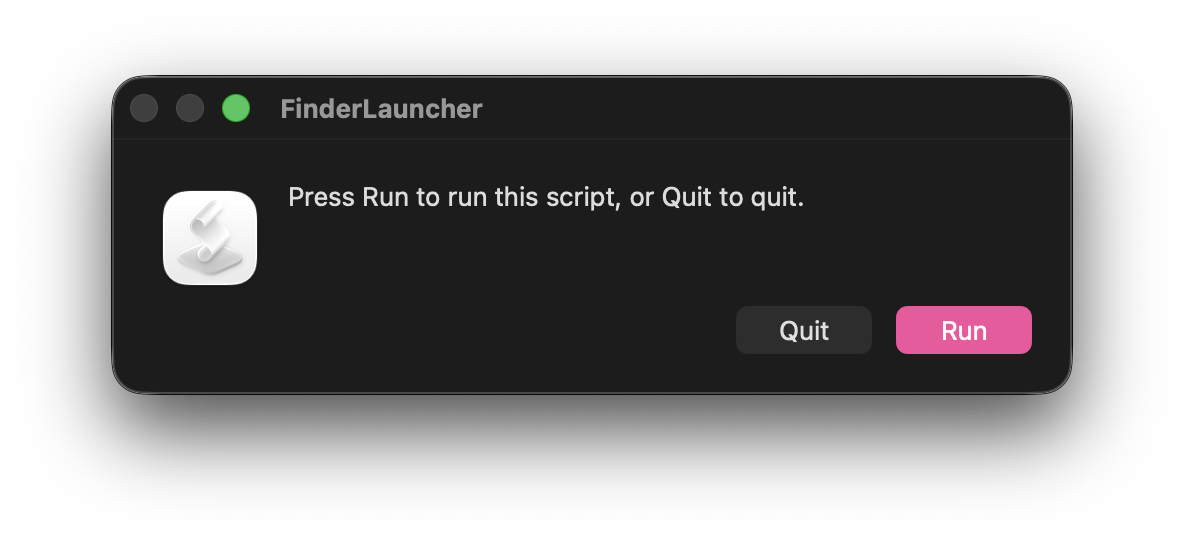
Inconsistency in workflow is a big no-no to me. Two options remain. One is handling it through Hammerspoon1, which would mean splitting where keybindings are set. This I don’t like as it can cause confusion for future Joris. That guy’s got enough to deal with, so let’s not. The last option is to set up a “Raycast Script Command”. This basically means writing a little script, placing it in my script folder with a .applescript extension and calling it from Raycast. Luckily the content of this script is basically the same as the .app solution above, just with a Raycast metadata header on top.
|
|
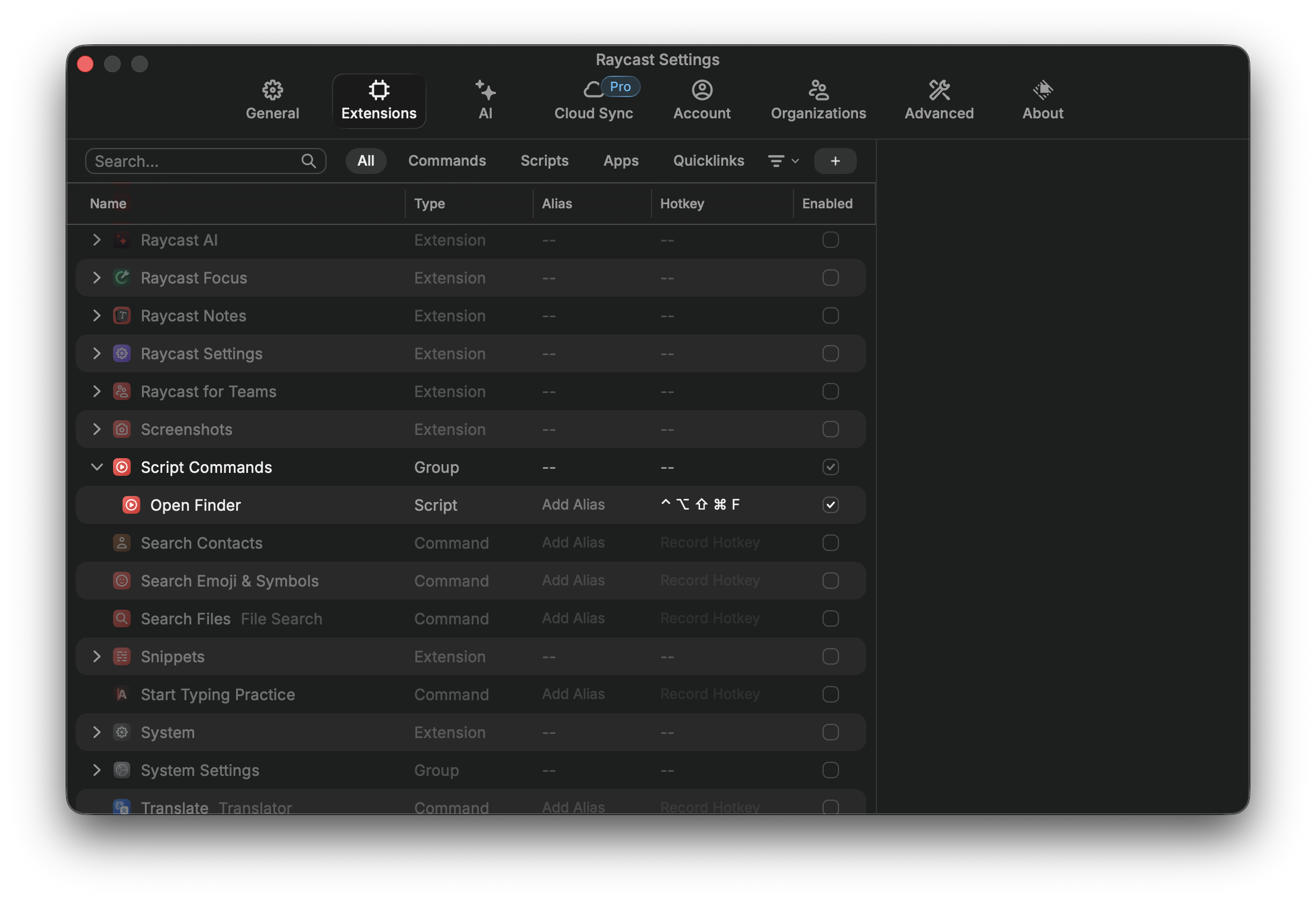
Make sure it’s executable and open Raycast. It will magically pop up under Settings → Extensions → Script Commands. Set the keybinding and we’re done. (One heads-up: the first run will trigger a macOS Automation prompt. Grant it to Raycast, not Terminal.)
Should you regret implementing this, you can revert the quit behavior of finder with defaults write com.apple.finder QuitMenuItem -bool false, followed by a killall Finder.
