From day one on the Macbook I looked at how I could make this thing work for me in a way I was accustomed to. I come from Linux, a world of endless possibilities. In the 15+ years I used it as my main system, I got a certain workflow that was my own. People used to joke that I didn’t need to lock my laptop when I was away, as it was unusable to anyone else. I didn’t use a bar. A logged in system would show nothing but the wallpaper. Pressing the super (Windows) key did nothing. Right clicking the desktop did nothing. Sure, a Linux window manager user would press super + enter and they would be greeted by Kitty, my terminal emulator, but no Windows user would press that combination.
For moving around I had keybindings. Pressing super + w would open Firefox, w for web. Super + t would open Thunar, my file manager. Doing these in sequence, the browser would vanish and you’d only see Thunar in fullscreen. All programs were full screened by default. One program visible at a time. What wasn’t visible, but was very much happening, was that all programs opened on their own workspace. If a program was running, the keybinding attached to that program would switch to the workspace the program ran on. If it was not, it would do so too, but then also launch the program. This way I could jump around my system with two button keybindings.
No need for a menu or mouse navigation. It was glorious.
Jump to macOS. Totally mouse driven. Big ugly dock at the bottom for navigating; stacking windows overlapping each other; nasty always visible bar at the top. Yuck. This simply won’t do. I went searching for solutions and found several window managers, but none that fit what I was looking for. So I did what I do best. I hacked together a solution.
It took three programs (none of them window managers) and I am super happy with the result.
Karabiner Elements
Karabiner is “A powerful and stable keyboard customizer for macOS”, according to their website1 and they are not lying. I need this because I want a single key to act like the super key. I picked the left option key. I rarely use its default functionality (turning almost every Option + letter into a glyph), and on the odd occasion I do, there’s a second one on the right side of the keyboard.
I can’t use option as the modifier directly, though. The system still treats it as option, so it fires glyphs instead of triggering my keybindings. Luckily Karabiner lets me remap the left option key into a hyper key: a non-existing key that’s a combination of keys being pressed, bound to a single button.
In Karabiner, go to Complex Modifications, add a new rule and enter the following.
|
|
Pressing the left option key will now register on the system as if you pressed control, option, command and shift at the same time. I call it a hyper key.
Raycast
The next program I needed was Raycast. “Your shortcut to everything”, they claim on their site2. This program is not only my spotlight replacement (or Rofi replacement if we’re speaking Linux window manager terms), but it also handles my custom keybindings system wide.
In settings, under the Extensions tab you have Applications. Expanding this shows a list of all installed programs on the system. Three columns right of the name of the application is the Hotkey column.
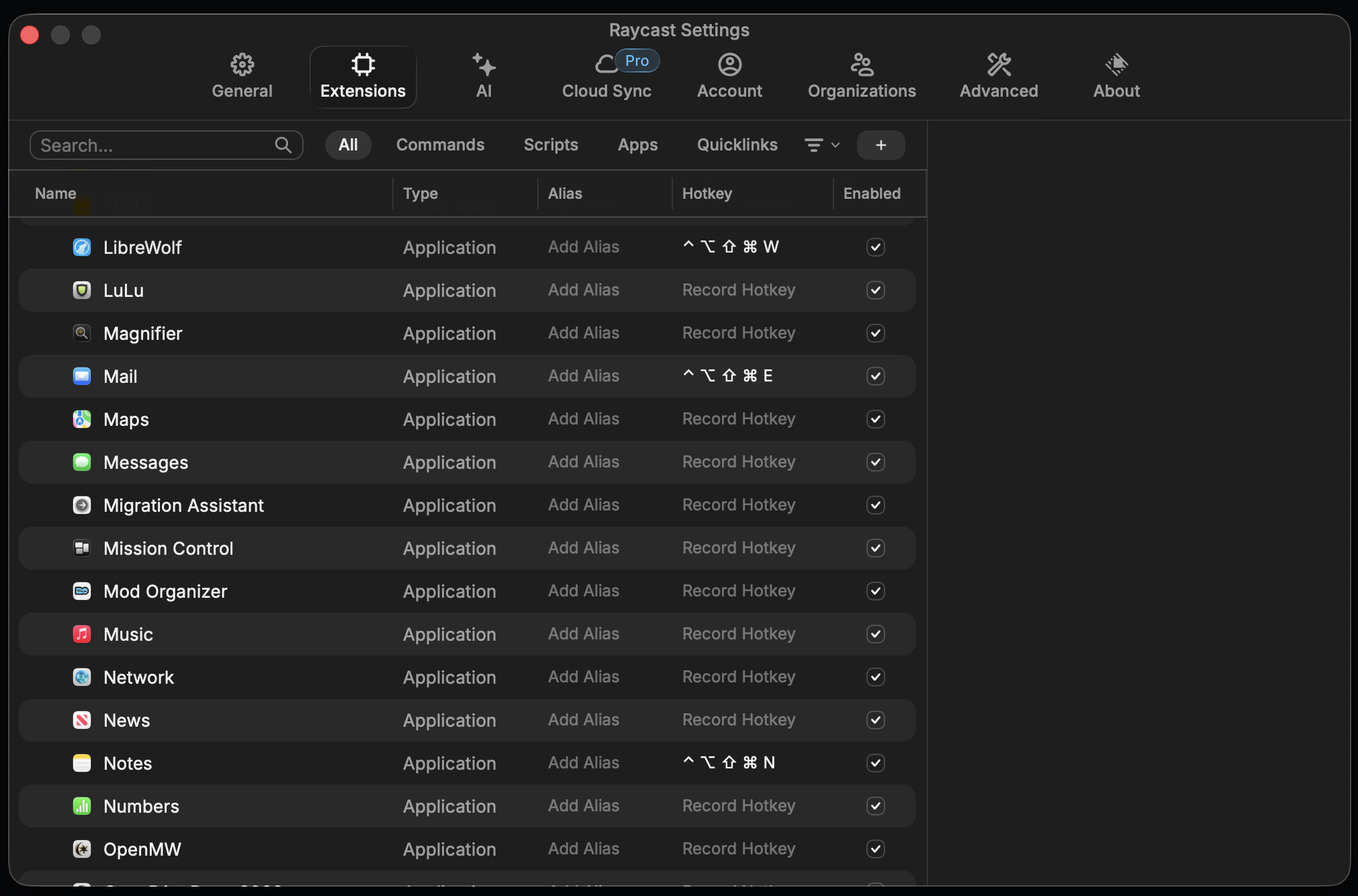
As you can see, I’ve set one for LibreWolf, Mail and Notes. I did so by clicking on Record Hotkey, pressing the left option key I had set as my hyper key, followed by the character I want to use. W in the case of LibreWolf. Now whenever I press Left option + w, LibreWolf will launch, or be pulled to the front if it is already running. Almost there. I now need it to always be fullscreen, covering all other running programs. I also still need to get rid of that bar and the butt-ugly dock.
Hammerspoon
Enter Hammerspoon. The third and last program I need. Hammerspoon is “…a tool for powerful automation of macOS”, as they state on their website3. This program is going to fix both the dock and the full-screening of things for me. Open up the config from the icon in the top bar. In it I entered the following.
|
|
There are five things happening here, labeled with the numbered comments above them.
- A function to change the size of any window to fill the whole screen. Not full screen it, as that places it on a special workspace in macOS. I do not want that.
- A window filter watching for any window being created and runs fillScreen (1) on it automatically.
- Everything above only fires on future windows, so this loop walks every window already open and fills it too. It catches whatever was on screen before the config loaded. Useful for when you leave applications running to be restarted on boot.
- This shells out to defaults to enable dock autohide, set an absurd 100-million-second reveal delay, and shrink the tiles to 1px, then killall Dock to apply it. The net effect is a dock that never actually appears.
- And this is just a visual cue that the config has loaded. It shows up once on boot.
Save, close, reload config and we’re all set! Now this does not put every program on its own workspace, as I had on Linux, but the visual result is the same. I can’t tell the difference. One thing that’s still there is the top bar, but that can simply be set to autohide in the macOS settings. Search for bar, select Automatically hide and show the menu bar and set it to always. It’s still there, it’s just hidden unless you mouse over the top.
I have the same keybindings as I had on Linux. All applications are full-screened. No visual clutter and full keyboard driven navigation around the system. I am content.
